Quick Start
Set up EasyChat in four steps
Step 1: Download and install EasyChat
Follow Download and Install to get and install EasyChat.
Step 2: Configure a translation source
EasyChat supports both AI models and machine translation. Choose one based on your needs. See Translation Sources for a comparison.
AI model
- Open EasyChat and select
Settingin the sidebar. - Select
Translationon the settings page. - On the
AI Modeltab, add and configure the model you want to use.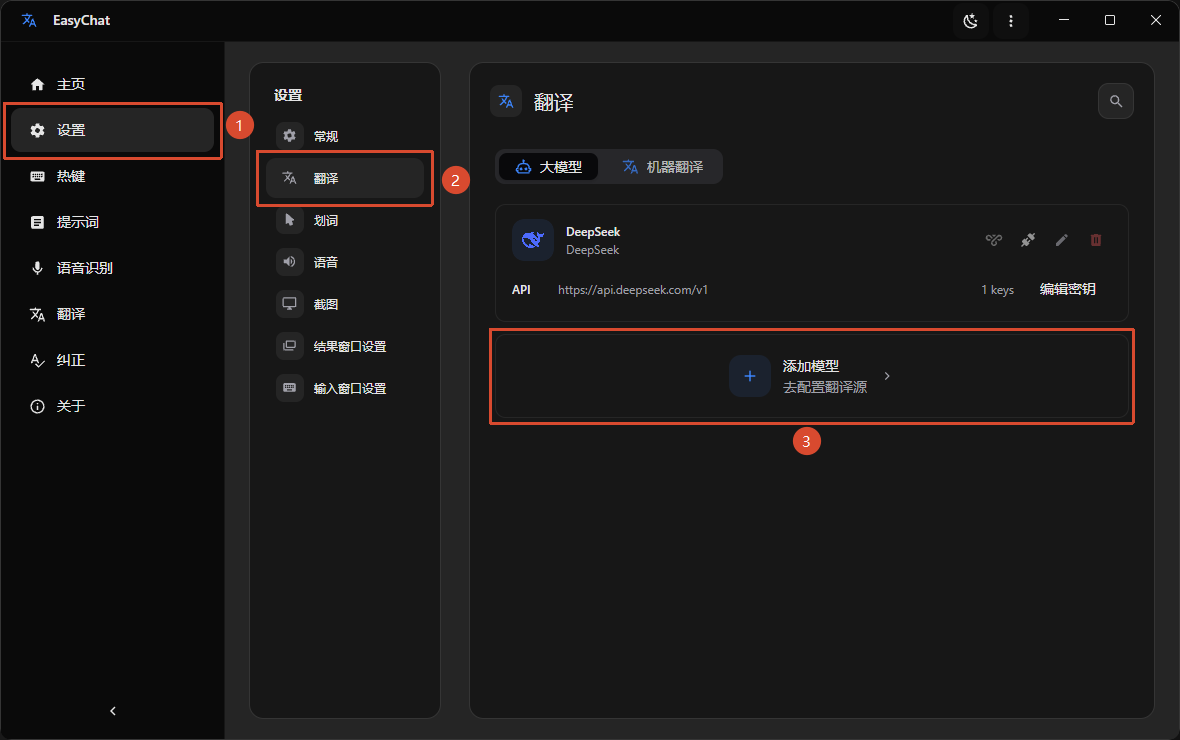
- Select
Saveto keep the configuration.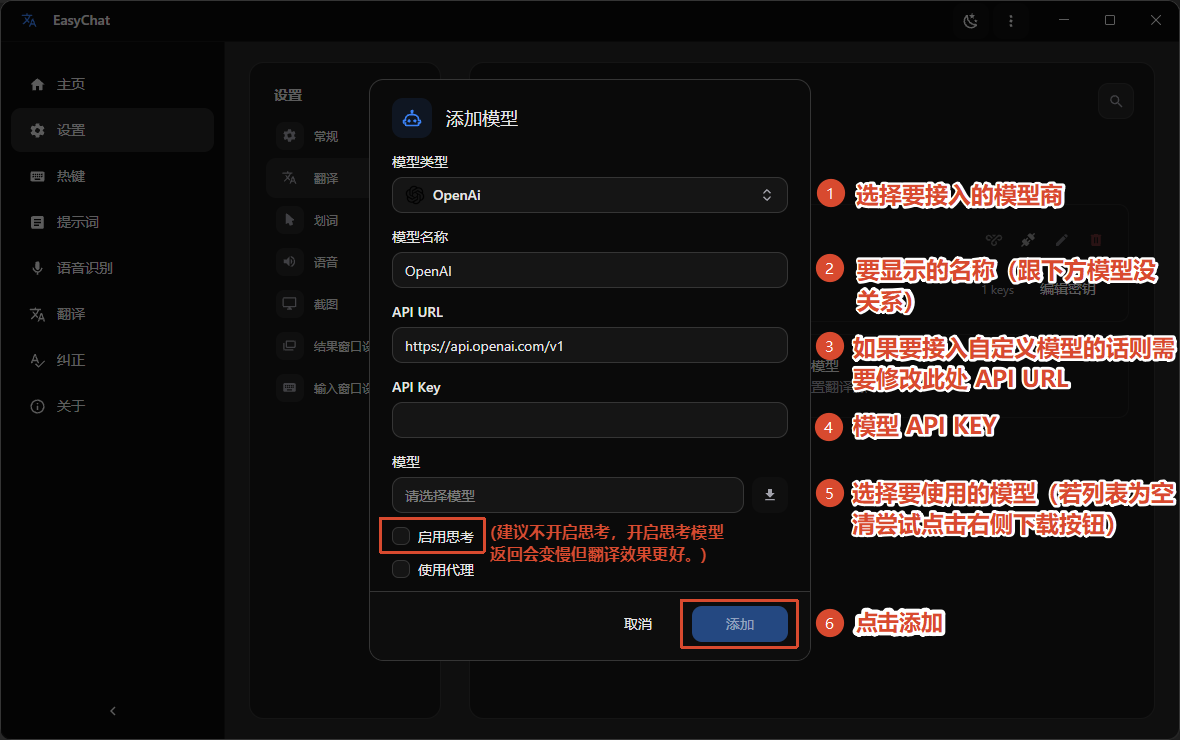
Machine translation
- Open EasyChat and select
Settingin the sidebar. - Select
Translationon the settings page. - On the
Machine Transtab, enter the API key for the translation service you want to use.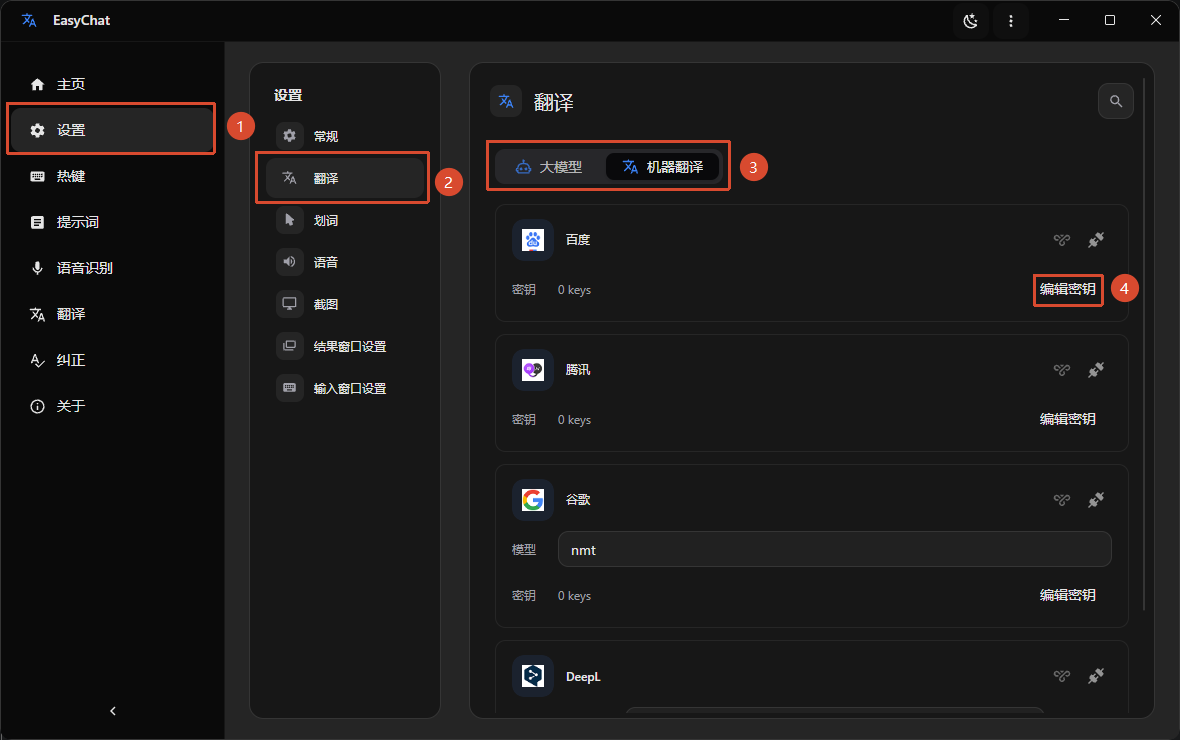
Step 3: Configure shortcuts
- Open the
Shortcutpage from the EasyChat sidebar. - Add shortcuts for the actions you want to use.
- For example, bind screenshot translation to
Alt+1andTyping TranslatetoAlt+2.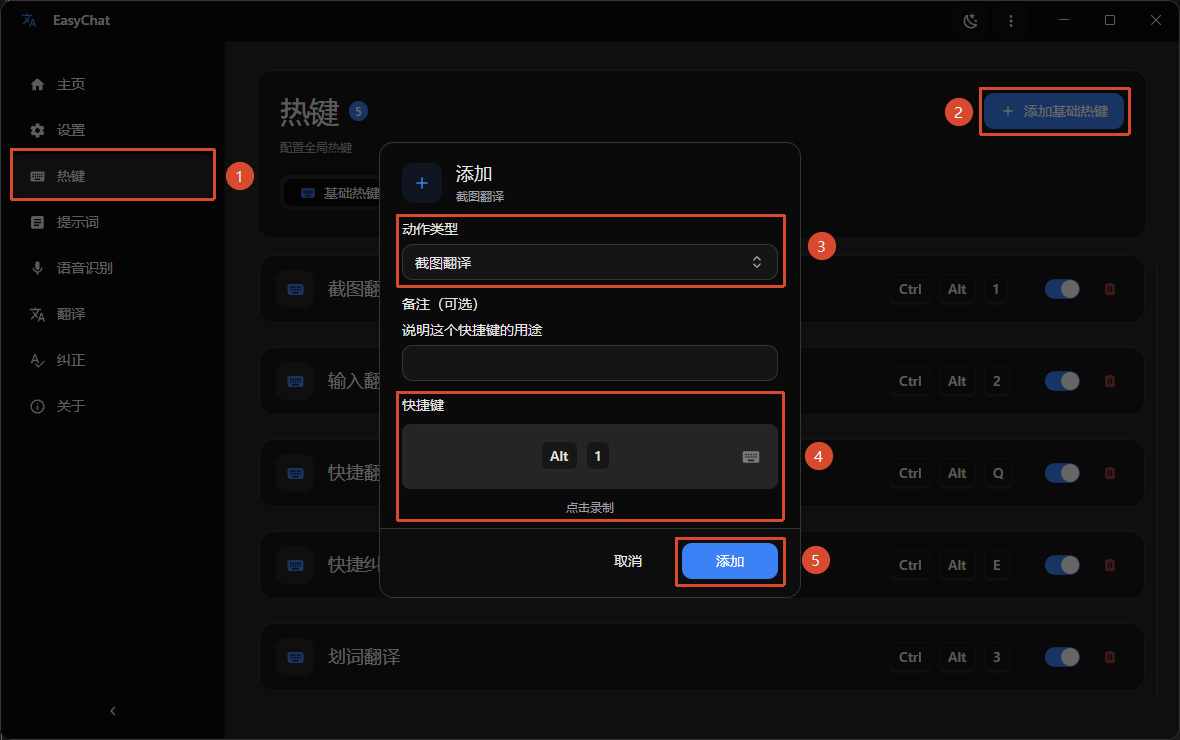
Step 4: Download an OCR model
EasyChat uses OCR models to recognize text in screenshots.
- Open EasyChat and select
Settingin the sidebar. - Select
Screenshoton the settings page. - Choose the OCR language model you need, then select
Download.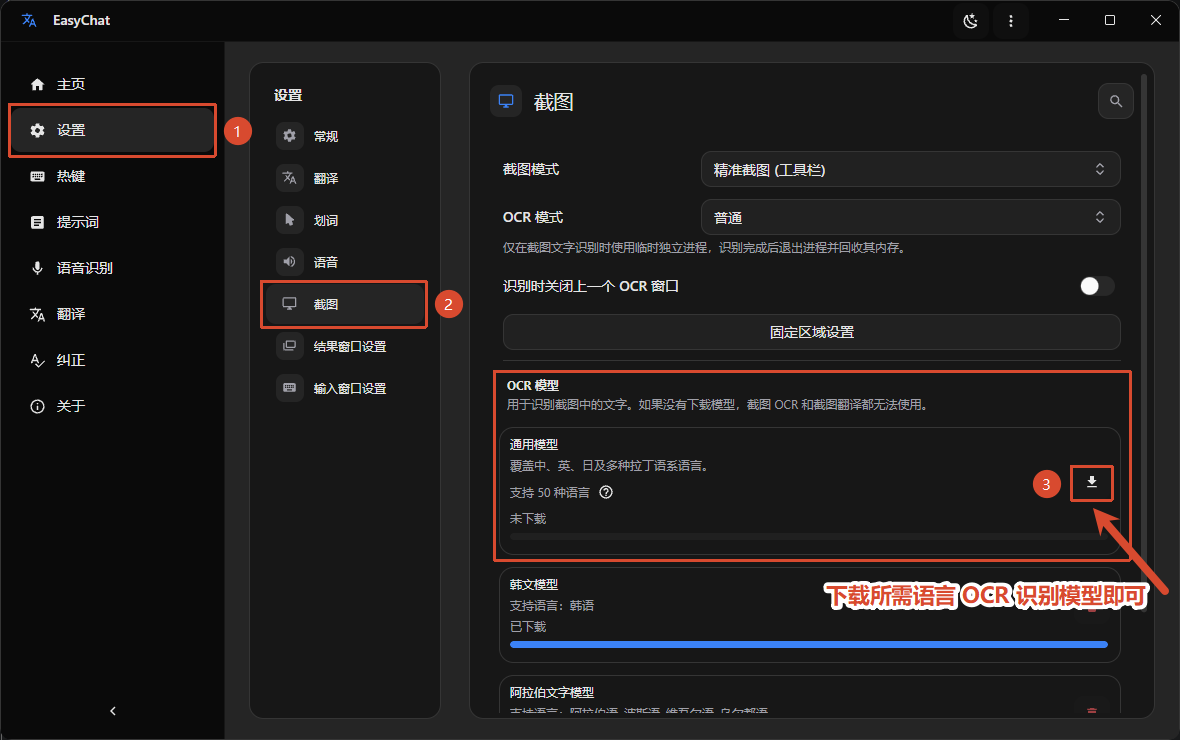
Start using EasyChat
You can now use screenshot translation and Typing Translate:
- Screenshot translation: Press
Alt+1, then select the area to translate. EasyChat recognizes and translates it automatically. - Typing Translate: Focus a text field in an application such as a chat client or browser, press
Alt+2, and enter the text in the window that appears. EasyChat detects the language, translates the text, and sends the result to the target application.