
Screenshot OCR
Recognize and interact with text inside a selected screen area
Screenshot OCR recognizes all text in a captured area. In the OCR window, select any recognized text to copy, translate, or explain it, or translate the complete image.
How to use it
There are two ways to open Screenshot OCR.
Shortcut
On the Shortcut page, add a shortcut whose action is Screenshot OCR. Press it and select the screen area to recognize.
Screenshot toolbar
Under Setting > Screenshot > Screenshot Mode, choose the precise capture mode with a toolbar. After selecting an area with the screenshot translation shortcut, choose the OCR action on the capture toolbar.
An OCR model for the text language must be installed under Setting > Screenshot > OCR models.
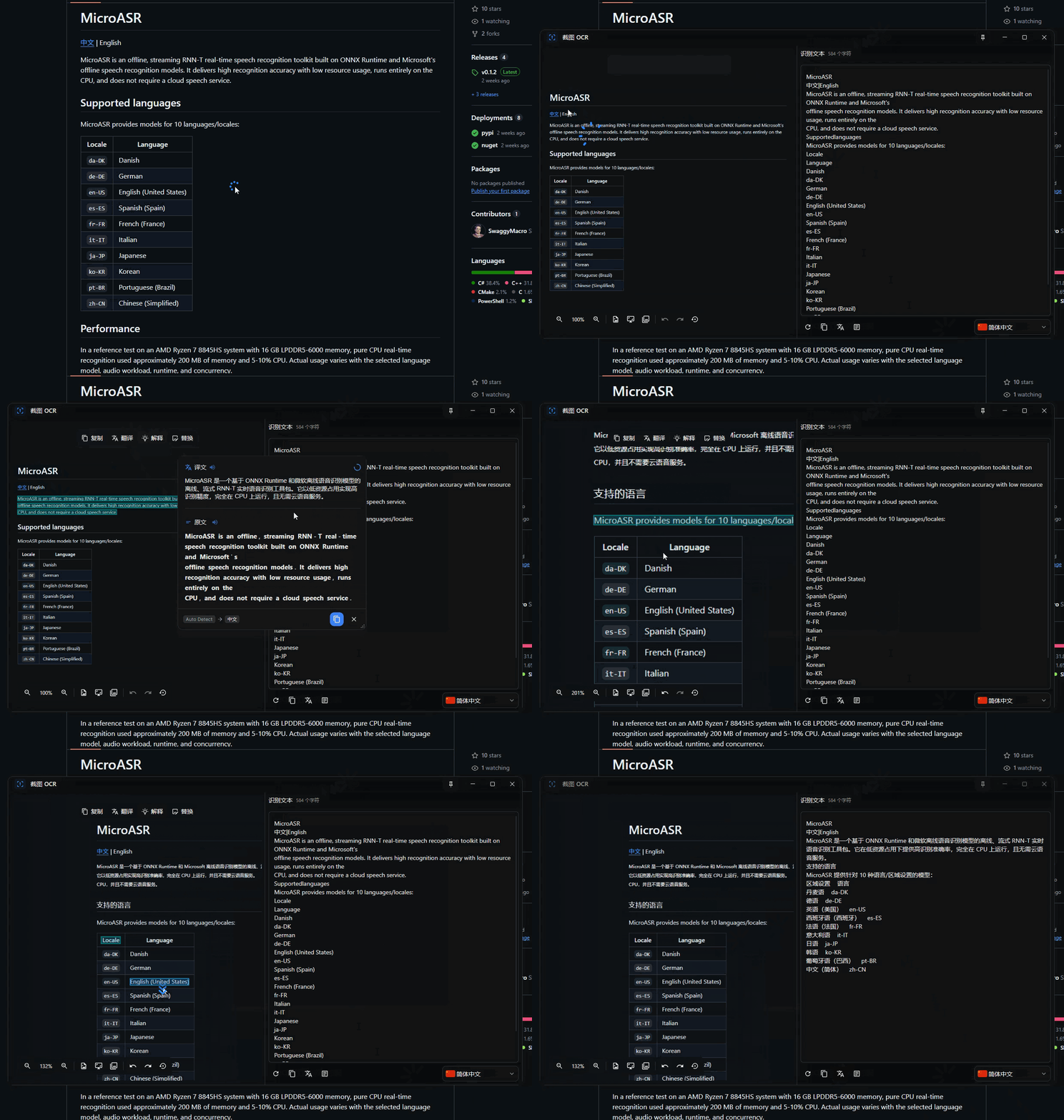
Use cases
Extract non-selectable text
Copy error messages, protected webpage text, scanned documents, or image-only PDF content without retyping it.
Look up text within an image
Select an individual word or phrase in a comic, poster, or game and translate or explain only that selection.
Capture code and data from video
Extract code, commands, or table data shown in a tutorial and paste it into an editor or spreadsheet.
Reuse key information
Copy tracking numbers, addresses, contact details, and technical terms from screenshots into another application.