Screenshot Translation
Select an area of the screen to recognize and translate its text
Screenshot Translation recognizes text in a selected screen area and translates it into your target language.
How to use it
- Add a shortcut. Open
Shortcutfrom the sidebar and add a shortcut for Screenshot Translation. - Download an OCR model. Under
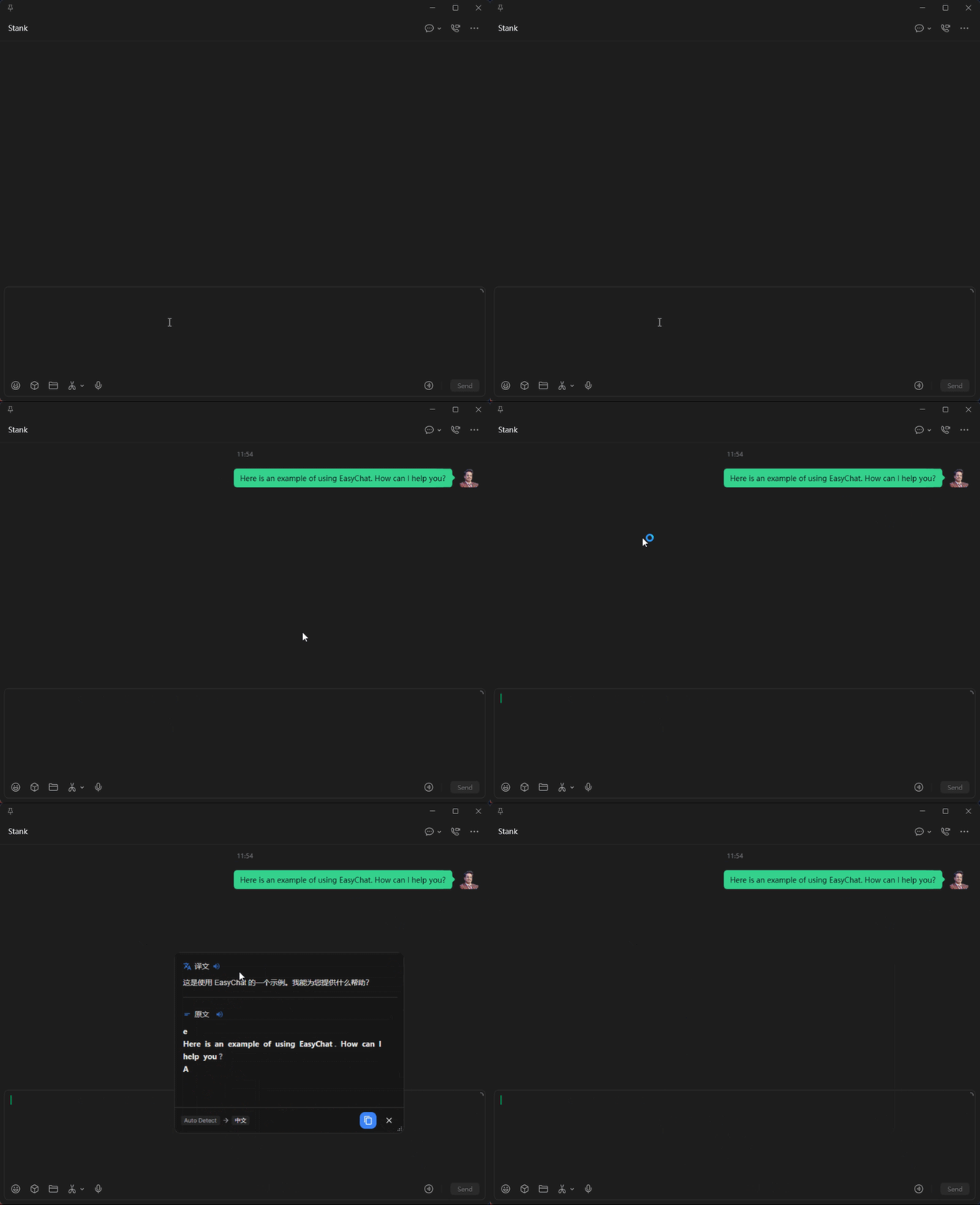
Setting > Screenshot > OCR models, download a model for the language you need to recognize. EasyChat provides OCR models for more than 80 languages. - Capture and translate. Press the configured shortcut and drag over the area to translate. EasyChat recognizes the text and displays the translation on screen.
Requirements and display modes
- At least one working translation source, either an AI model or machine translation, must be configured first.
- Choose a result layout under
Setting > Result Window > Result Window Mode:- Classic: shows the translation at the top of the screen for quick reading.
- Dictionary: opens a floating dictionary window near the pointer with details such as phonetics, parts of speech, definitions, examples, and pronunciation. Dictionary details require an AI model.
Use cases
Images and non-selectable documents
Translate scanned documents, image-only PDFs, comics, and posters without manually retyping their text.
Unlocalized software and games
Capture interface labels, skill descriptions, or dialogue in software and games that are not available in your language.
Videos and live streams
Pause a lecture, video, or stream and translate text shown in slides or in the video frame.
Close reading and language study
Use Dictionary mode to study definitions, phonetics, parts of speech, examples, and pronunciation while reading foreign-language content.