Quick Correction
Correct grammar and wording and review detailed suggestions
How to use it
Use Quick Correction either from the correction tab on the Translate / Correct page or from a global shortcut. An AI model is required.
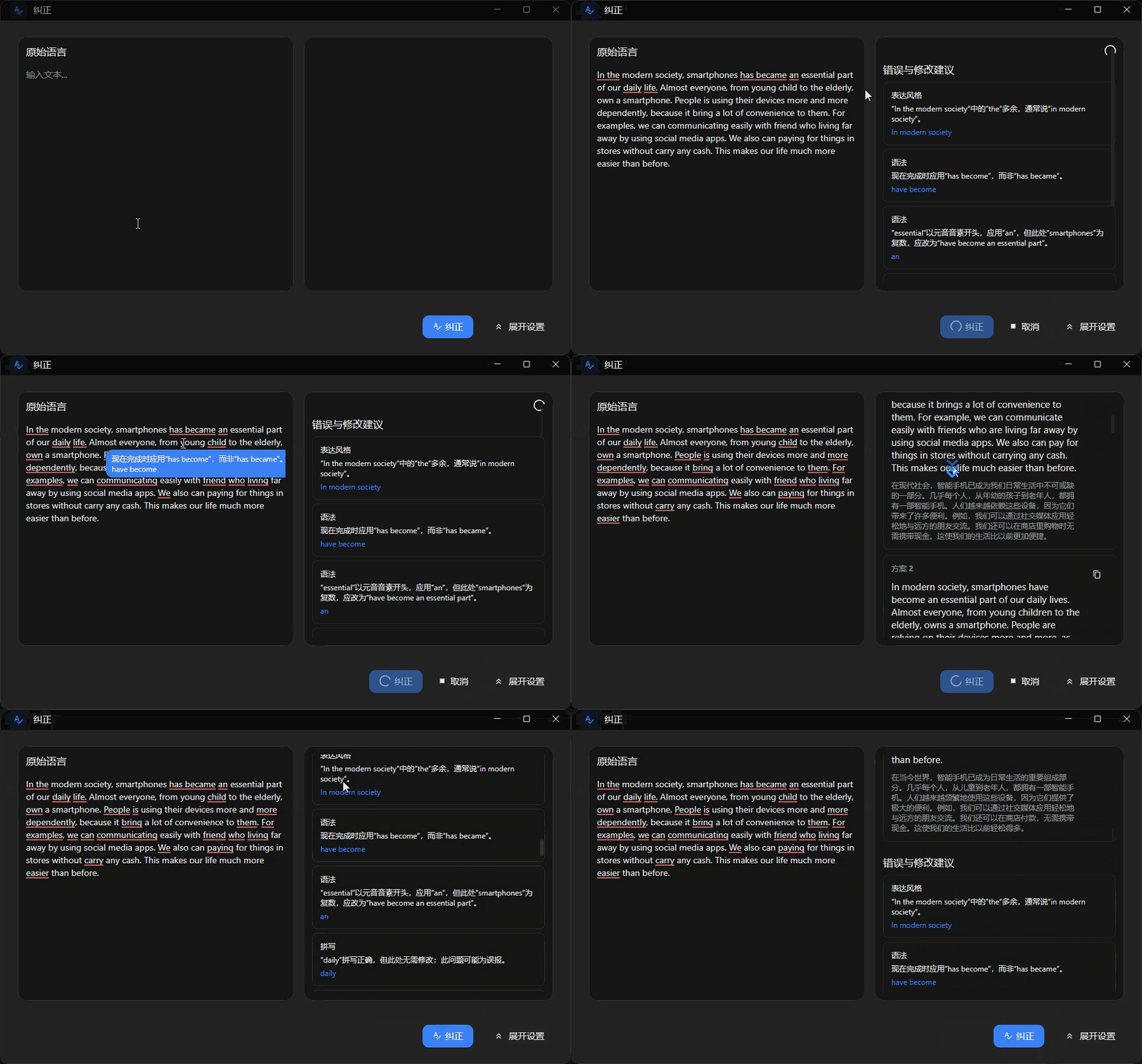
The page and shortcut window let you choose the source language, AI model, and prompt. EasyChat underlines detected issues, shows a corrected result, and provides suggestions and explanations.
Shortcut
- On the
Shortcutpage, add a shortcut for Quick Correction. EnableRead selected textif the shortcut should copy the current selection automatically. - Press the shortcut, then enter text or correct the selection loaded into the window.
Use cases
Email and professional communication
Review a foreign-language draft for grammar and natural wording before sending it.
Grammar study
Use underlined issues and detailed explanations to understand why a correction was made.
Academic and technical proofreading
Check longer passages for tense, agreement, preposition, and wording problems.
Social media drafts
Review a post before publishing it in a language you are still learning.