Typing Translate
Translate entered text and deliver the result directly to the target application
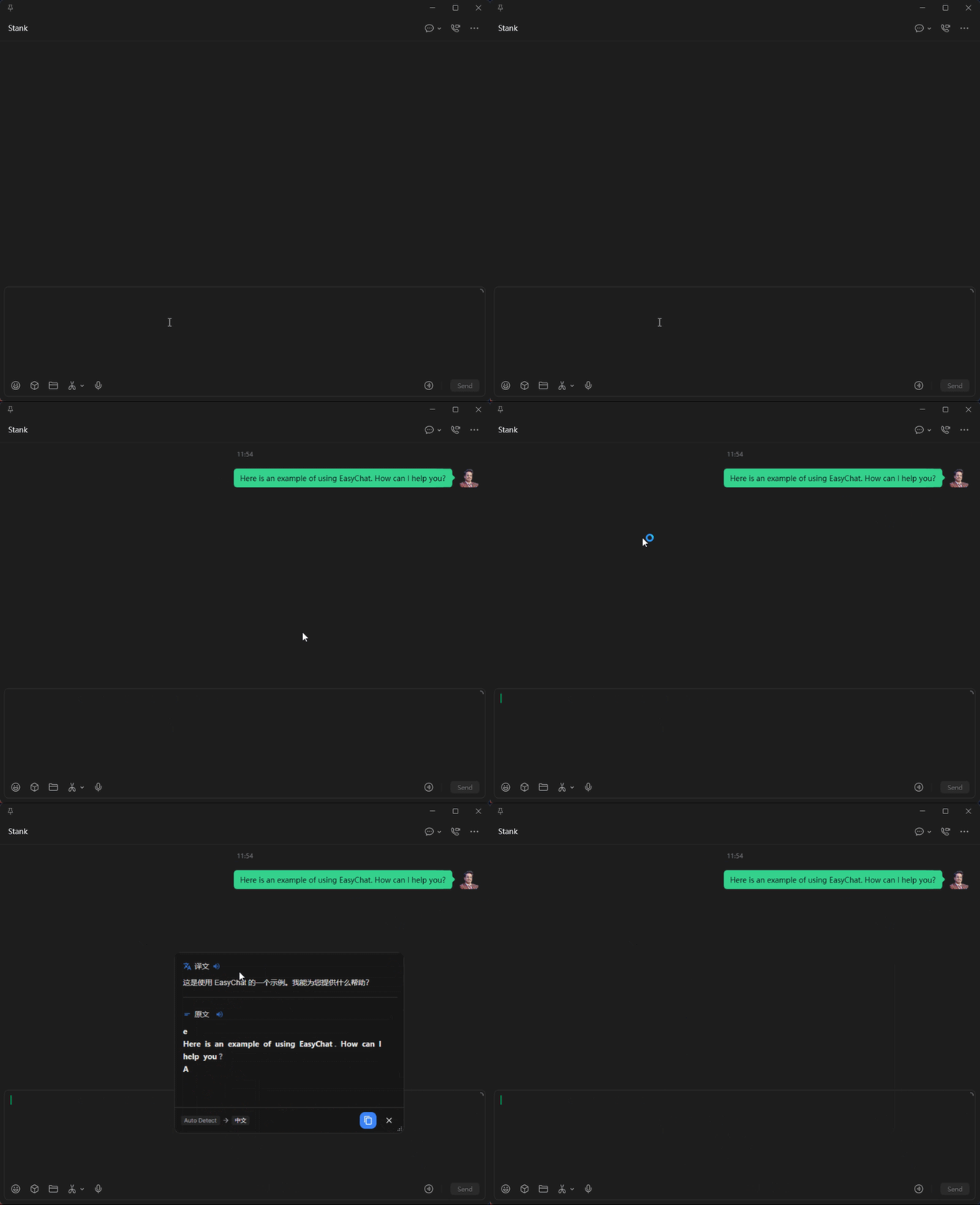
Typing Translate opens from a global shortcut. Enter text in your language and EasyChat translates it, then delivers the result to the currently focused application.
How to use it
- Open
Shortcutfrom the sidebar and add a shortcut whose action isTyping Translate. - Focus the text field in the target application, then press the shortcut.
- Enter the text to translate. EasyChat detects the language, translates the text, and delivers it to the target application.
Related settings
The input window supports:
- Setting the source and target languages, or choosing
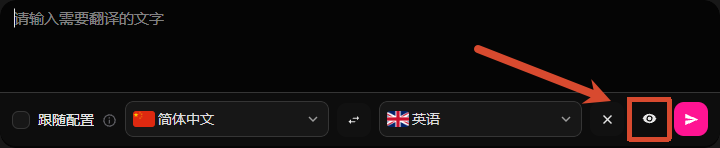
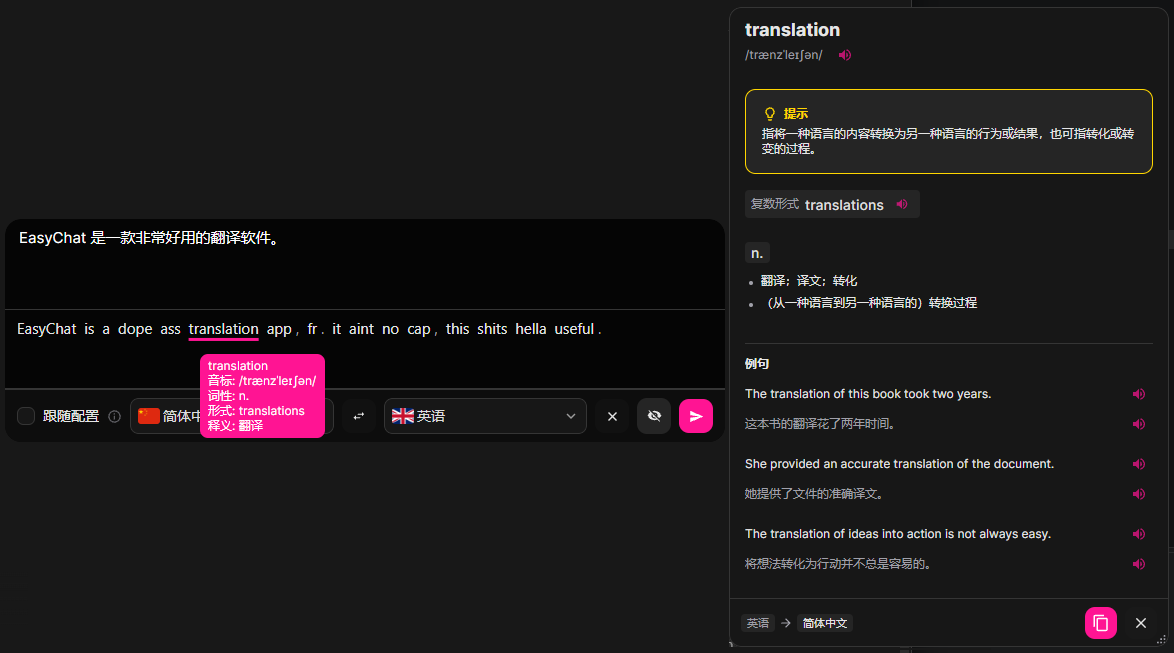
Follow Configurationto use the globally configured language direction. - Previewing the translation result by clicking the eye icon next to the close button in the lower right corner of the input window.
Note
The preview supports hovering over each word to see its definition (only available when the translation source is an AI model), and clicking to jump to the dictionary.
Requirements and language settings
- Configure at least one working translation source, either an AI model or machine translation.
- In the input window, choose the source and target languages directly, or enable
Follow Configurationto use the globally configured language direction.
See Input Window settings for text delivery, simulated keys, and language options.
Use cases
International business
Write in your own language while communicating with customers and international teams in chat, email, Slack, or Teams.
Cross-border customer support
Reply to customer questions in WhatsApp, Skype, or an e-commerce console without switching between the service and a translation application.
Multiplayer communication
Quickly translate messages into a game's chat field while playing on an international server.
Social conversations
Express ideas naturally when talking with people in Telegram, Discord, LINE, or other social applications.
Multilingual publishing
Translate a draft directly into a social media publishing field for faster multilingual posting.