
Audio Translation
Recognize audio or video playing on your system and show the translation as subtitles. Ten recognition languages are supported.
Install an ASR model
Before using Audio Translation, install an ASR model.
How to use it
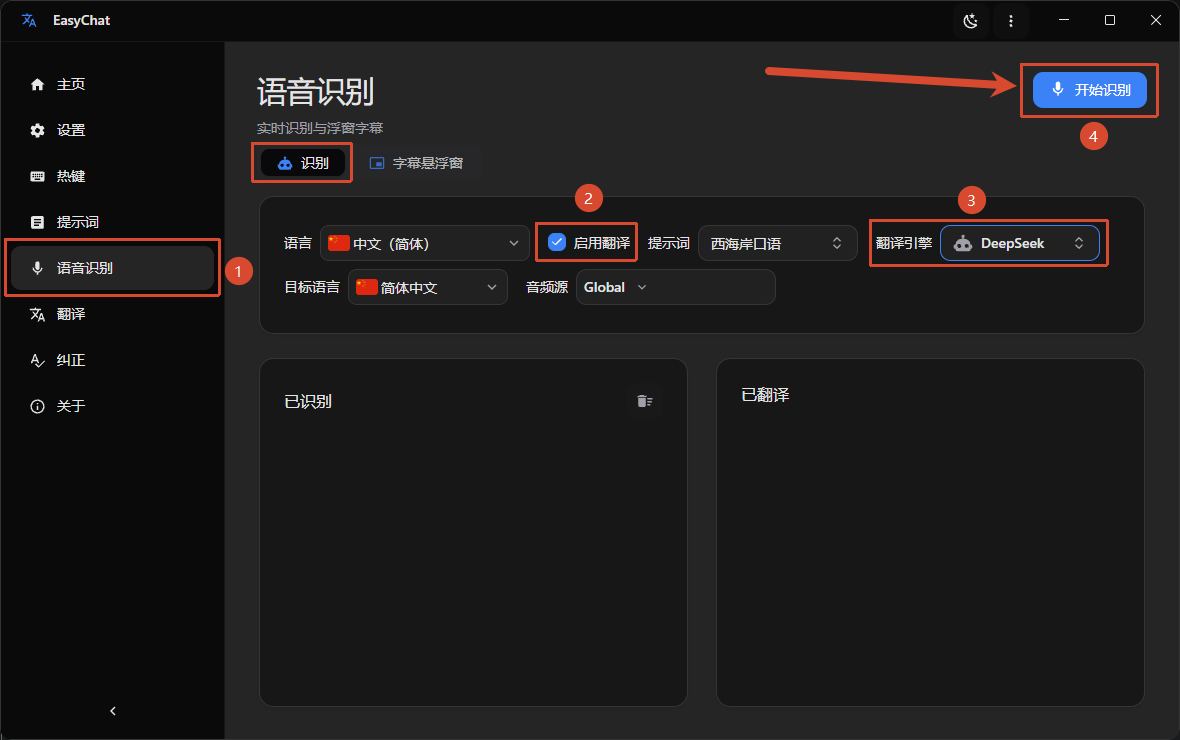
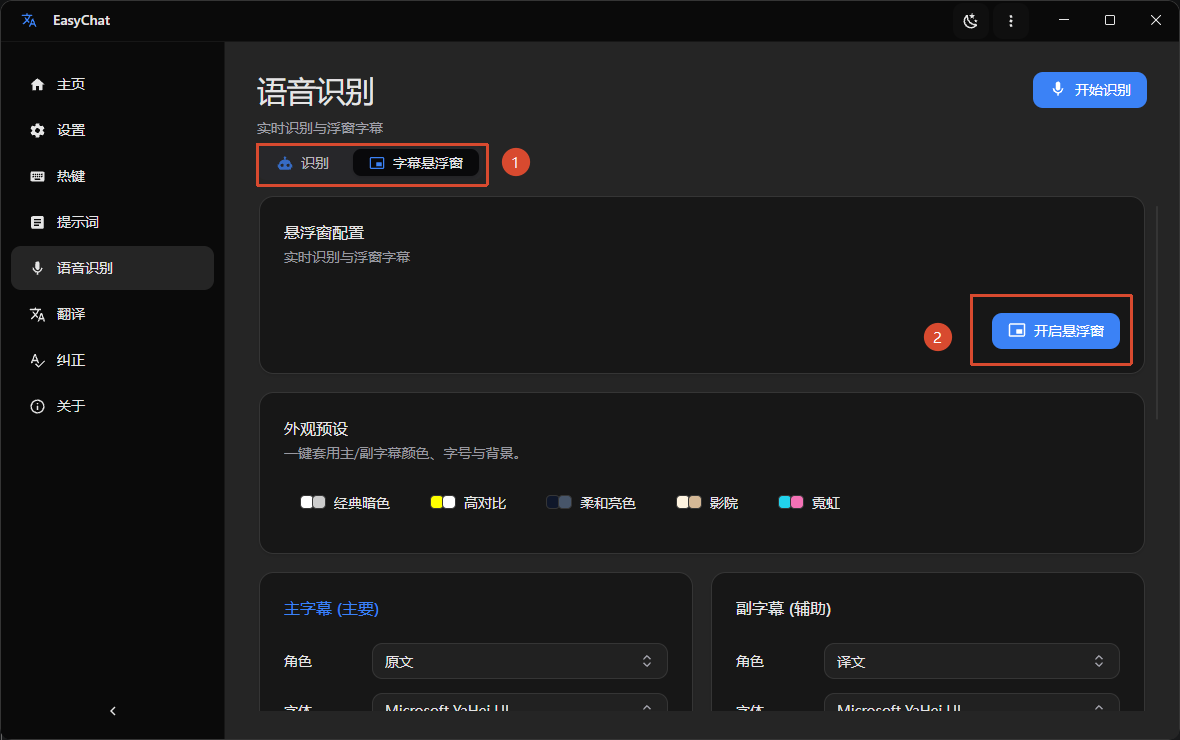
Open Live Translation -> Audio Translation, choose the options you need, select Start Recognition, and enable the floating subtitle window. EasyChat recognizes audio and video playing on your system and displays the translated result as subtitles.
You can limit recognition to a particular process with the audio source option.
Use cases
Videos and live streams without subtitles
Watch foreign-language videos and live streams with translated subtitles generated from system audio, so you can follow news and entertainment as they happen.
International meetings and online classes
When using Zoom, Teams, or an overseas online course, select the meeting app process for focused, real-time translated subtitles without interference from other applications.
Podcasts and audio-only content
Turn podcasts, audiobooks, and recorded interviews into readable translated text, making audio-only content easier to follow.
Immersive listening practice
Use floating subtitles as a real-time reference while watching original-language media or playing listening material, then compare pronunciation with meaning as you learn.
Live Translation
Translate system audio into subtitles or interpret your microphone input and send the translated speech through a virtual audio device. Ten recognition languages are supported.
Live Interpretation
Hold a shortcut and speak into your microphone. EasyChat recognizes and translates your speech, then outputs it through a virtual audio device. Ten recognition languages are supported.