
Live Interpretation
Hold a shortcut and speak into your microphone. EasyChat recognizes and translates your speech, then outputs it through a virtual audio device. Ten recognition languages are supported.
Requirements
Live Interpretation needs an ASR model and a virtual audio driver.
- ASR model: Recognizes speech. Ten recognition languages are supported.
- Virtual audio driver: Sends EasyChat's translated speech to a virtual microphone that other applications can use.
Install an ASR model
Before using Live Interpretation, install an ASR model.
Install a virtual audio driver
EasyChat uses VB-CABLE as its virtual audio driver.
Windows
Windows driver
Download the Windows virtual audio driver: VB-CABLE
macOS
macOS driver
Download the macOS virtual audio driver: VB-CABLE
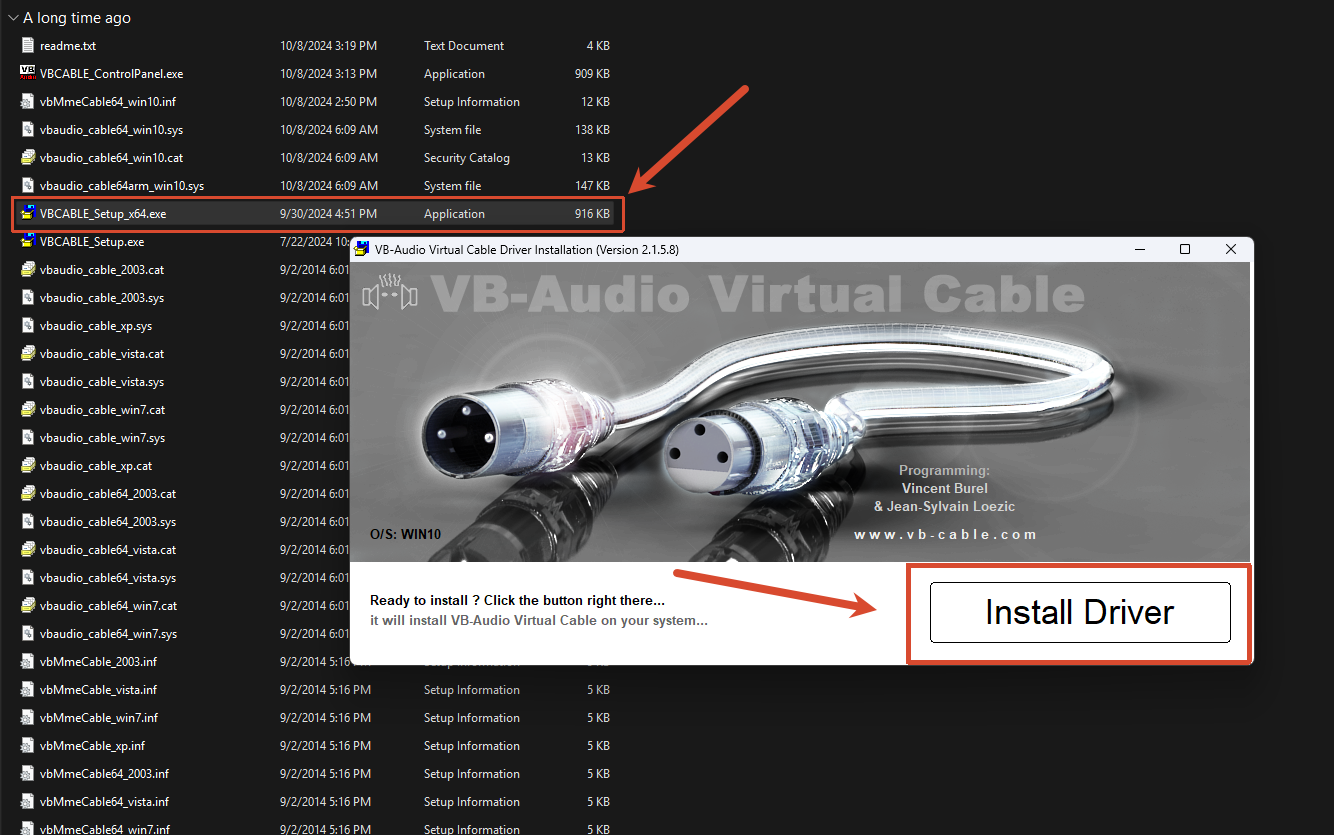
Extract the driver archive, open VBCABLE_Setup_x64.exe, then select Install Driver.
How to use it
-
Add a Live Interpretation shortcut on the
Shortcutspage.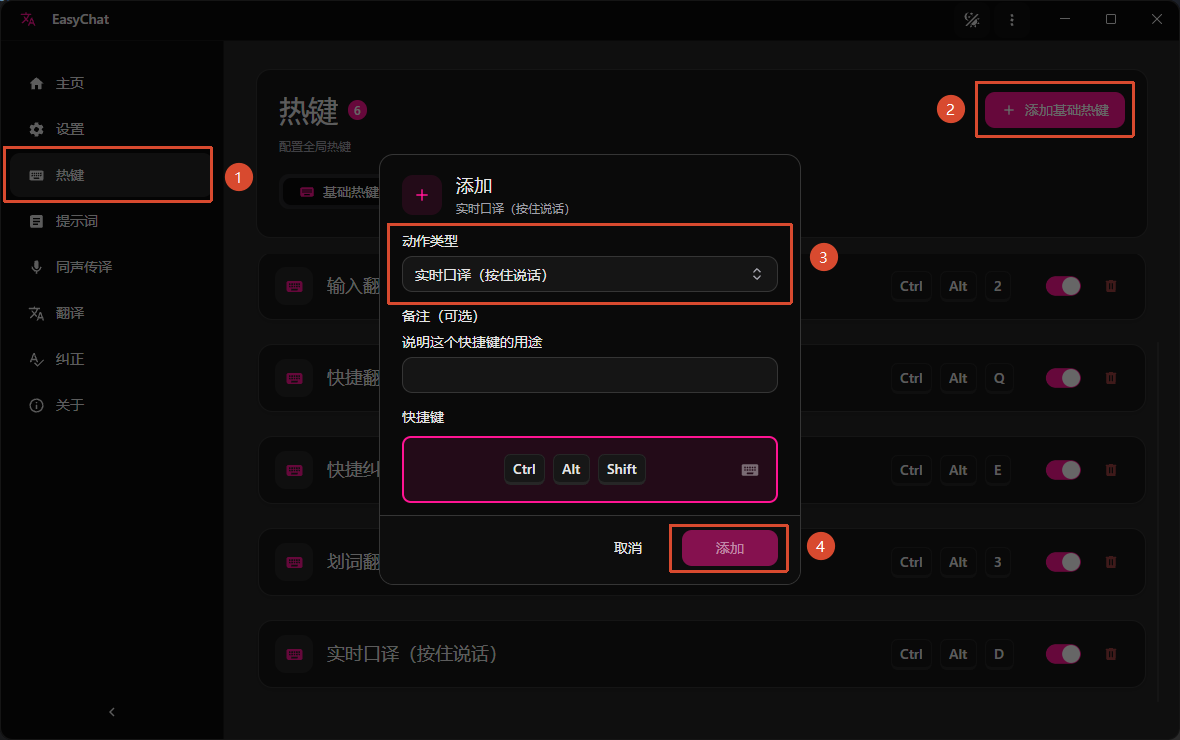
-
Open
Live Translation->Live Interpretation, choose your settings, select the physical microphone you want to use, choose the language you will speak, then select Start.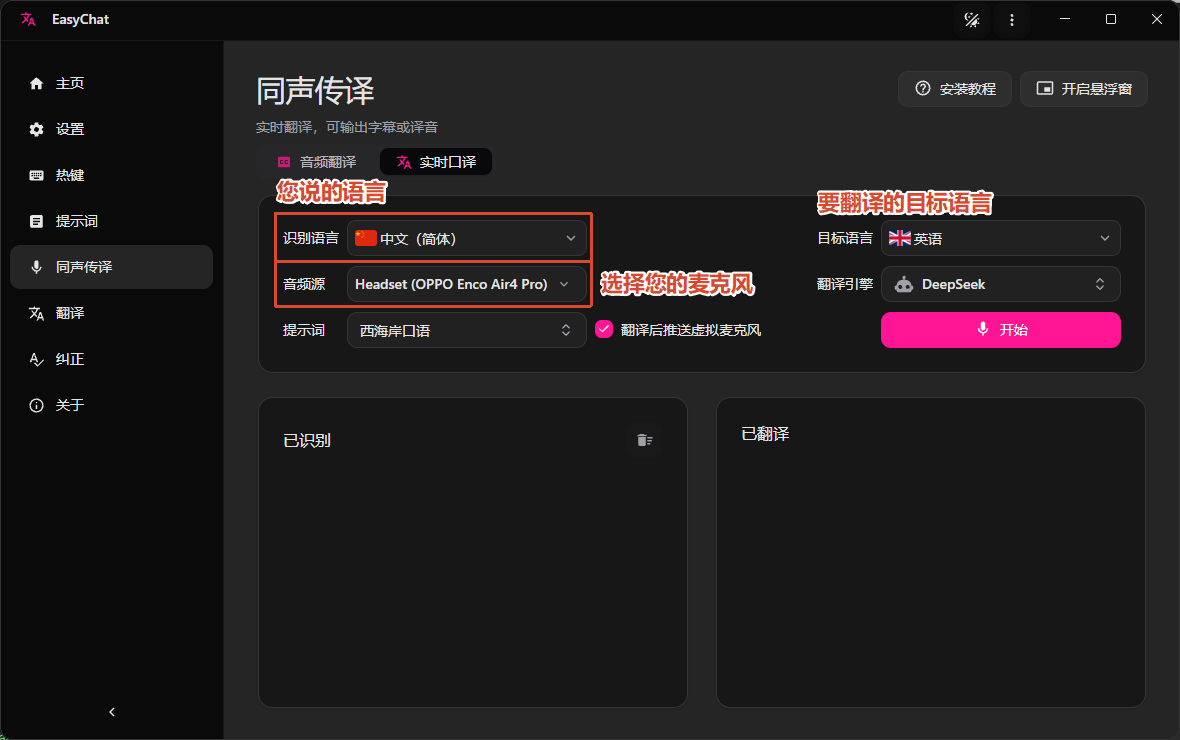
-
In the application where you need Live Interpretation, set the microphone input device to
CABLE Output.Alternatively, set
CABLE Outputas the input device in your system'sSettings->Sound->Inputto use it in every application.
Hold the shortcut while speaking. EasyChat recognizes your speech, translates it, and outputs the result through the virtual audio device.
Note
When you hold down the hotkey, the software will emit a Beep sound, indicating that voice recognition is in progress;
When you release the hotkey, the software will emit a Beep sound, indicating that voice recognition has ended.
Once the translation is finished, the software will emit a Beep sound, indicating that the translation is complete.
There are three distinct Beep sounds in total, representing the start of recognition, the end of recognition, and the completion of translation.
After the translation is complete, TTS (Text-to-Speech) synthesis will occur (taking about 1~3 seconds), and the translated result will be output through the virtual audio device.